
Guides
Edit an STL: lay it flat and add a hole
Import an STL, check its size in millimetres, lay it flat, inspect the mesh, cut a 4 mm hole and resize it evenly. Practice with the included plate.
Screenshots show the English interface.
Import the practice plate
Download the practice STL below, or use your own file. Open a design, click Import and drop the file onto the panel. The panel accepts STL, STEP, DXF and SVG; an editable .skf project opens with Open SketchForge Project instead.
Download practice STLSTL · 50 × 30 × 6 mm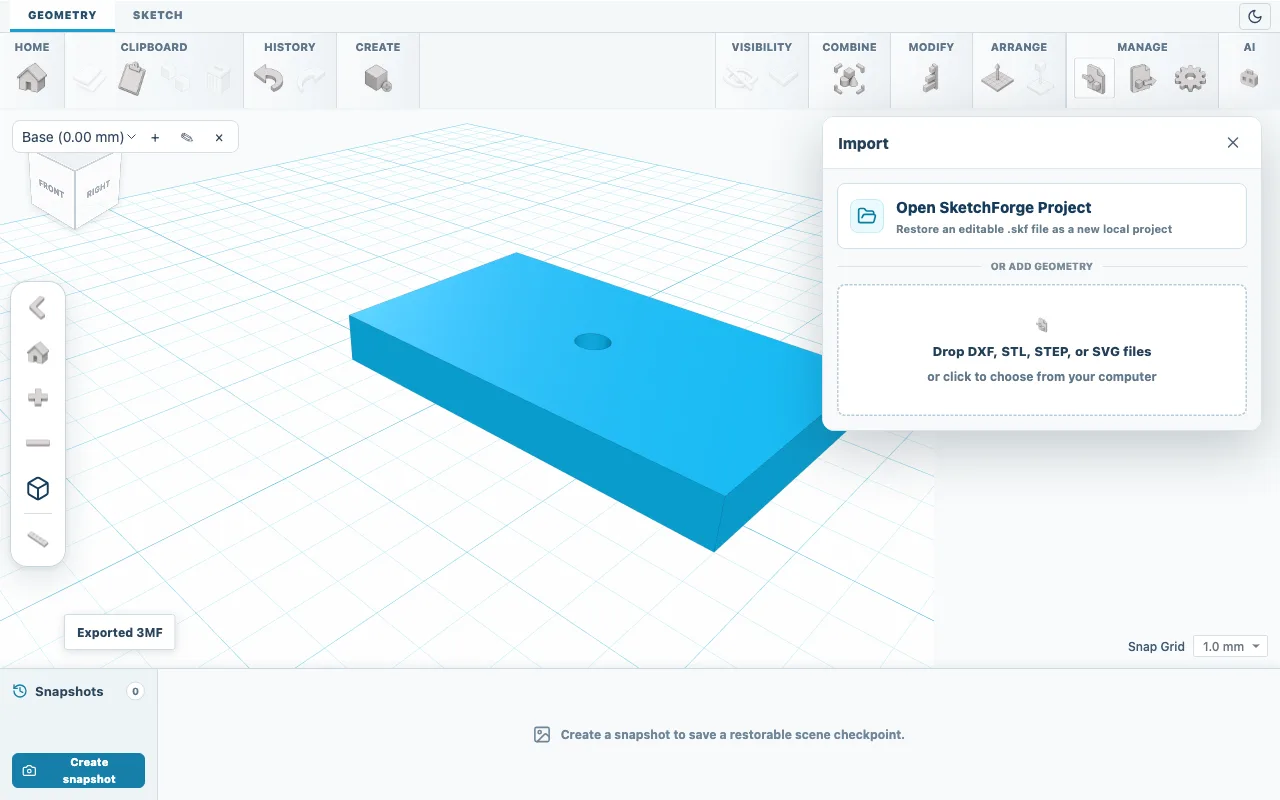
Fig. 01Import accepts STL, STEP, DXF and SVG files. Check the size
Select the imported mesh and read Length, Width and Height under Properties. STL files store no unit, so the numbers are read as millimetres. If a part that should be 50 mm wide shows about 2 mm, it was saved in inches: multiply each value by 25.4.
Lay the part flat
The practice plate arrives standing on its side with Height 30, because many programs save STL files with Z pointing up while the editor uses Y. Click a curved Rotate arrow next to the selection, type 90 and press Enter; if it turns the wrong way, use Undo and try another arrow. Then click Drop to workplane. The plate now reads Length 30, Width 50 and Height 6.
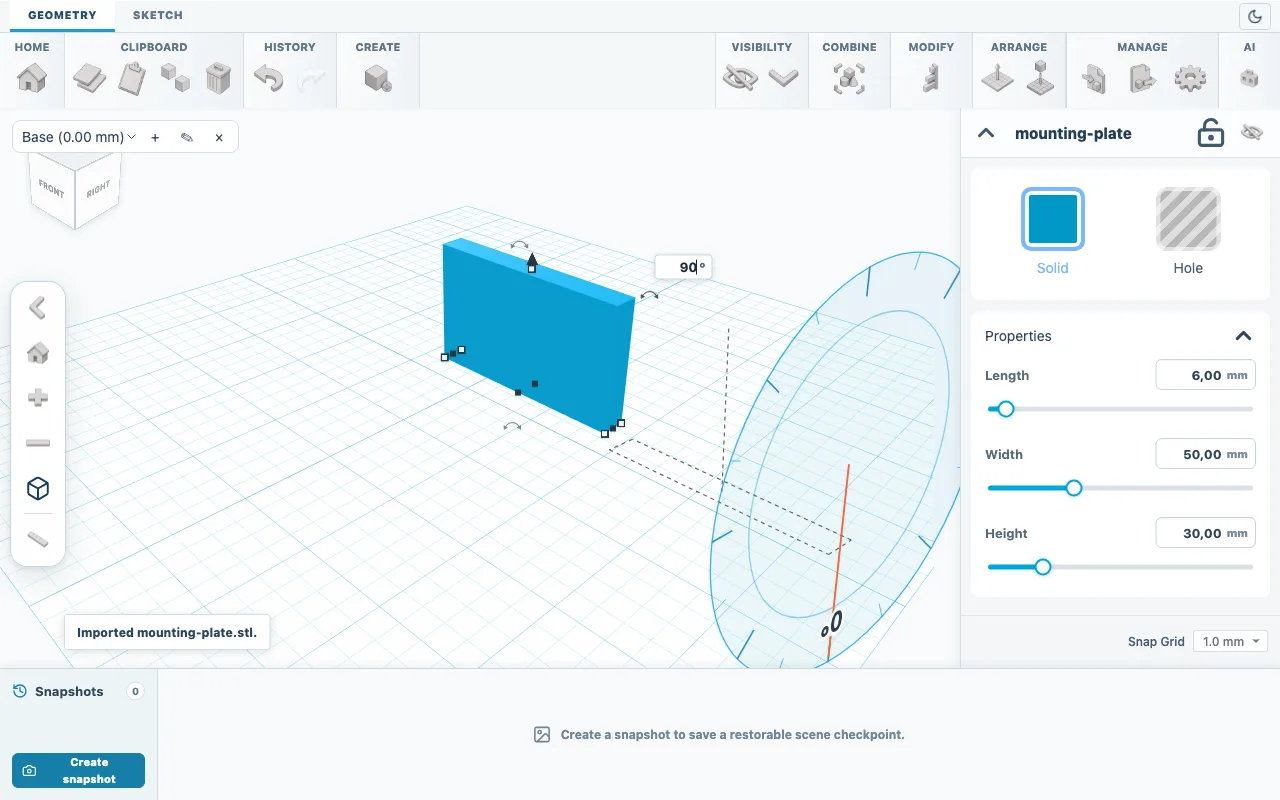
Fig. 02Rotate the plate by 90 degrees to lay it flat. Inspect the mesh
Open Modify, choose Mesh tools and click Inspect. Watertight means the surface is closed. If the panel recommends a repair, click Repair and inspect again before cutting or joining.
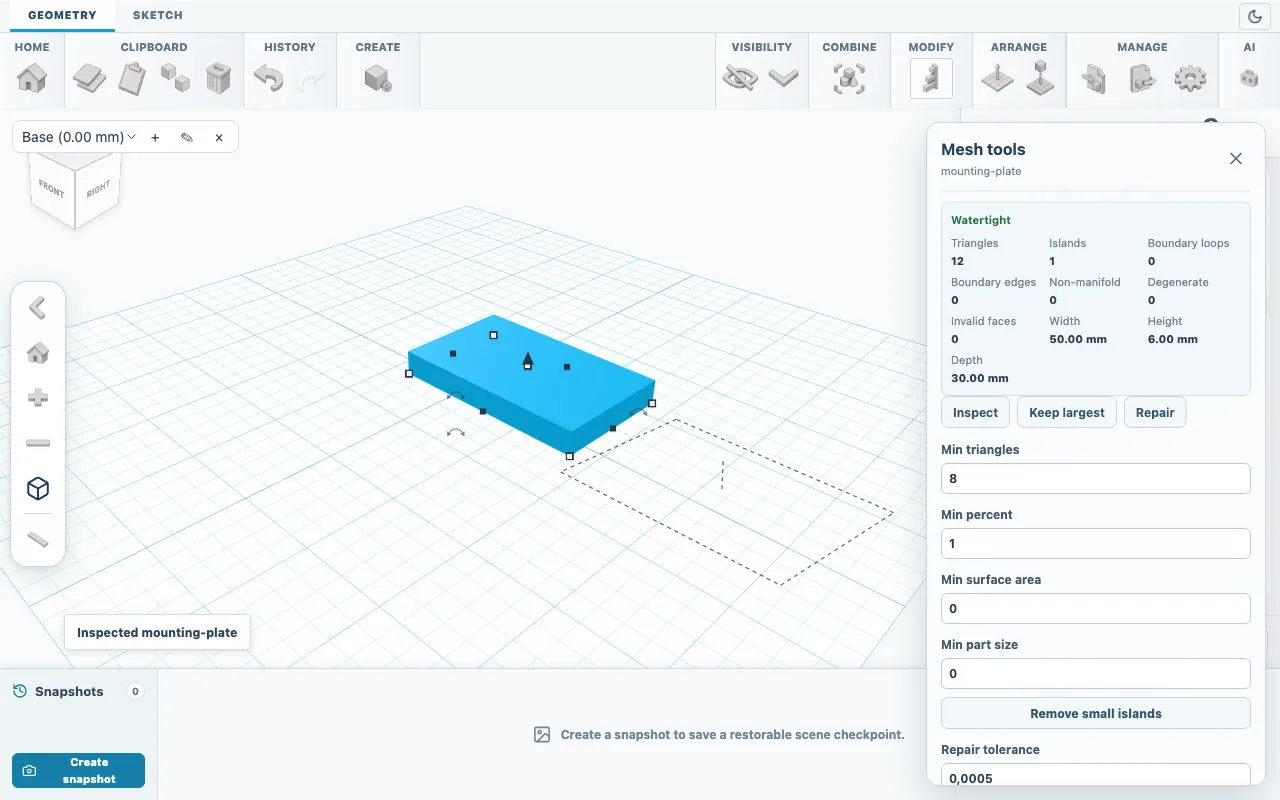
Fig. 03Inspect reports a closed, watertight mesh and its size. Add a 4 mm hole
Add a Cylinder, click Hole and type Length 4, Width 4 and Height 10. Select both shapes, choose Align, click the plate to anchor it and click the center and middle dots on the workplane. Click Align again, then open Combine and choose Boolean Cut.
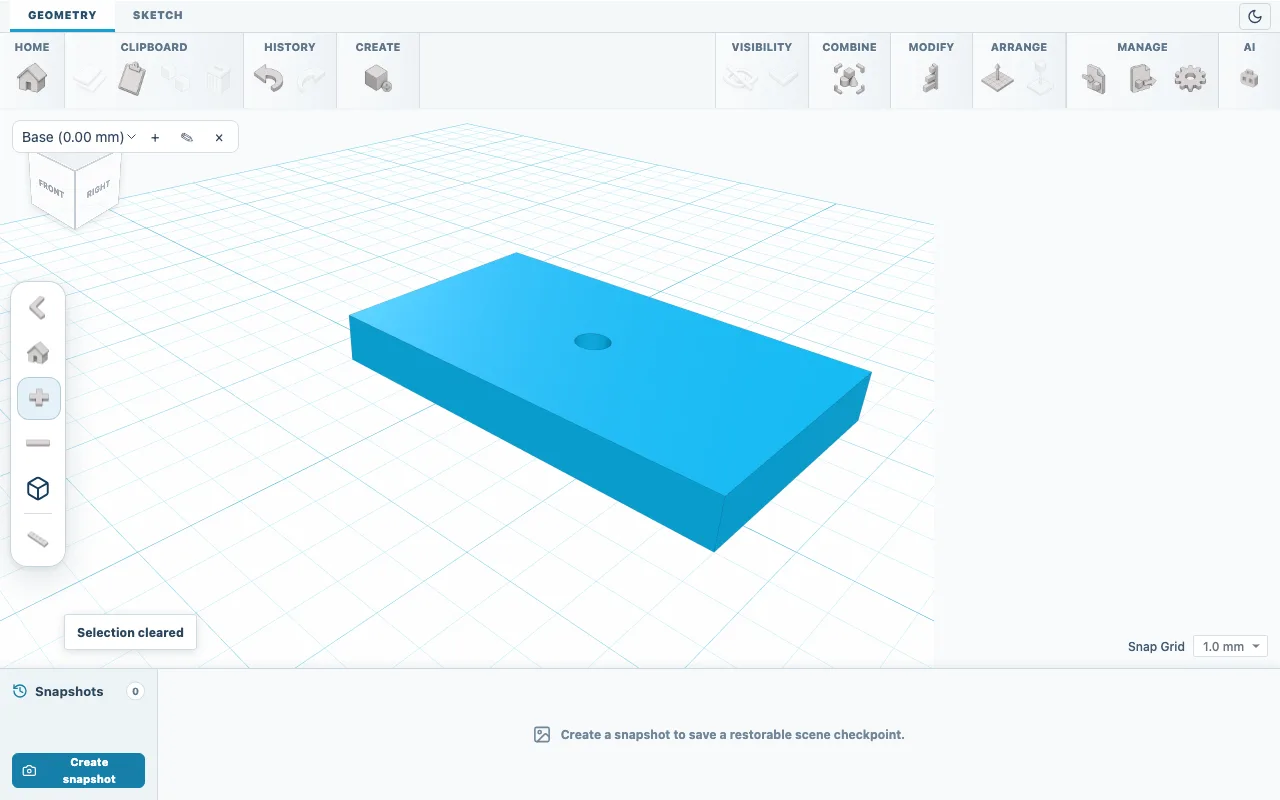
Fig. 04The plate with the new 4 mm hole. Resize with the same proportions
Length, Width and Height each scale one direction, including holes. To enlarge the plate by 50%, type 45, 75 and 9; the hole grows to 6 mm. Changing only one value stretches the round hole into an oval.
Export a separate copy
With the plate selected, open Export, choose 3MF or STL and use a new file name. Save an SKF copy as well if you want to reopen the project later.
Check the result
In your slicer the plate should measure 50 x 30 x 6 mm, or 75 x 45 x 9 mm after resizing. An STL stays a triangle mesh: you can scale it and add or cut shapes, but its original sketches and CAD features cannot be recovered.
If something goes wrong
- STEP files
- STEP imports arrive upright and keep their exact CAD geometry stored with the shape. Prefer STEP when the designer offers it.
- Loose fragments
- Scans often contain small floating pieces. Keep largest in Mesh tools removes everything except the largest part.
- A Boolean operation fails
- Open edges can stop Boolean operations on a downloaded mesh. Click Repair in Mesh tools, then inspect again.