
Guides
Export a model for 3D printing
Choose between 3MF, STL, OBJ, STEP, SVG and editable SKF, export only the parts you need and open the file in your slicer.
Screenshots show the English interface.
Keep an editable copy
Projects are stored in this browser. Open Export, choose SKF and click Save SketchForge Project. SKF always contains the full project; Saved action history sets how many undo steps travel with it: Unlimited, 100, 50 or 30. Reopen it with Import and Open SketchForge Project.
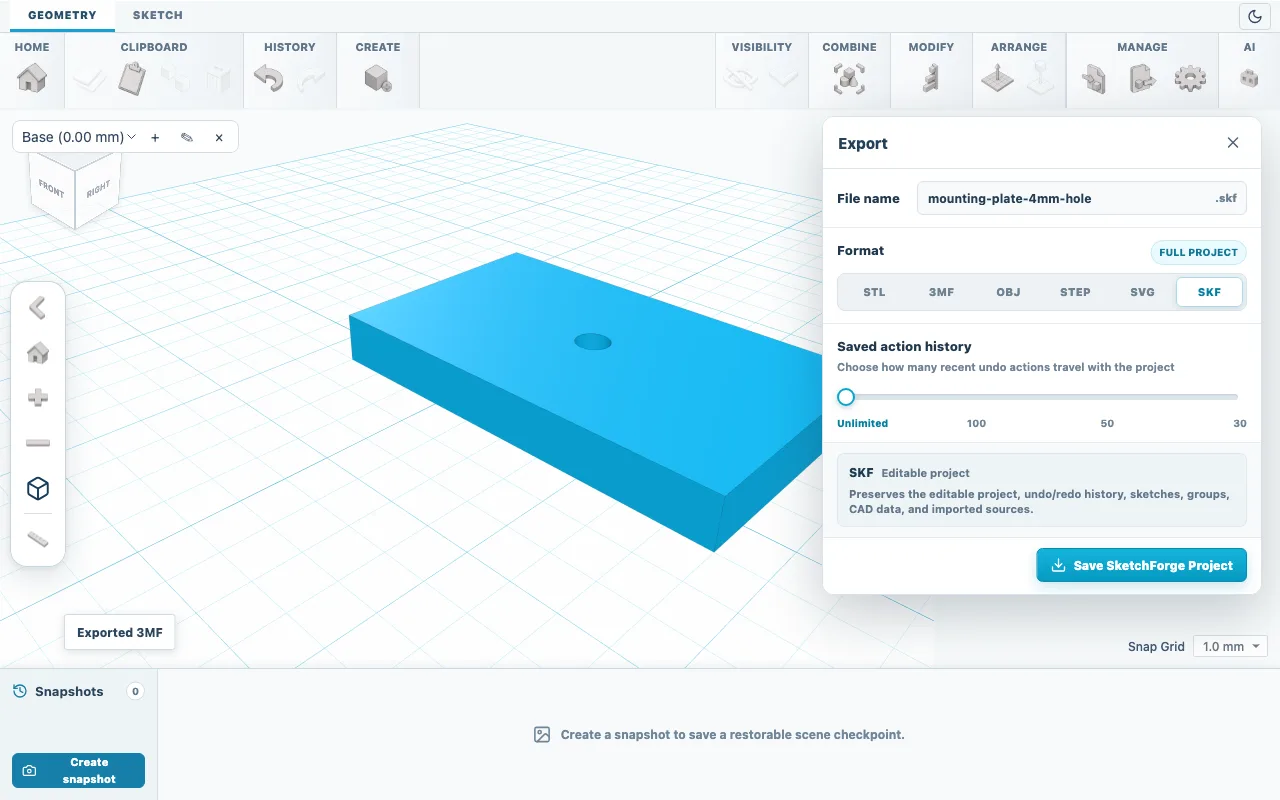
Fig. 01SKF keeps the editable project. Choose what to export
With nothing selected, the file contains every solid and the badge next to Format shows the count with total. Select shapes first to export only those; the badge then shows selected. Shapes set to Hole are never exported on their own, so cut them into a solid with Boolean Cut first.
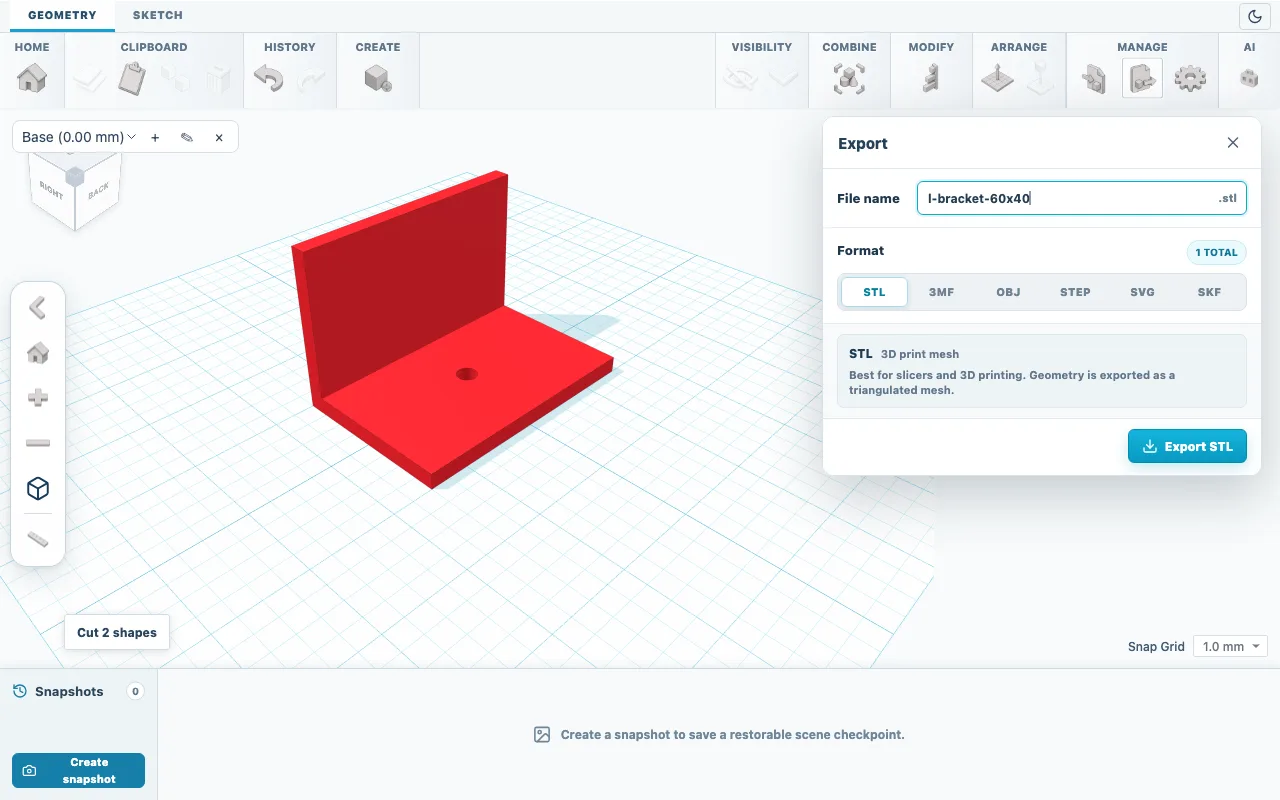
Fig. 02File name, format and export scope. Pick the format
For printing, use 3MF if your slicer opens it, otherwise STL. Type a name in File name; the extension is added for the chosen format. The list below describes each option.
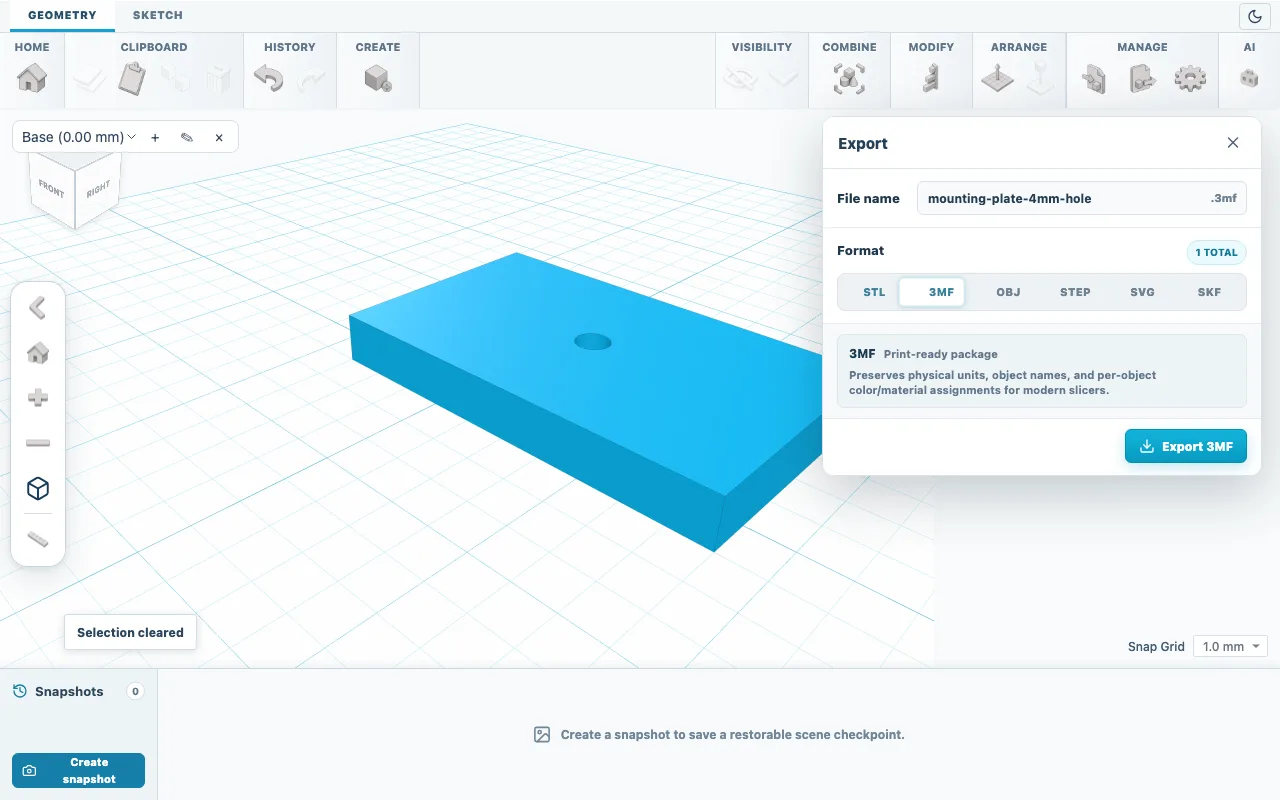
Fig. 033MF stores units, object names and colors. Download the file
Click the export button at the bottom of the panel. SolidPrompt does not send jobs to a printer: your browser saves the file like any other download.
Check it in your slicer
Open the file in your slicer and check the size first: the bracket from the first guide should measure 60 x 40 x 40 mm. Place its largest flat face on the build plate, choose your printer, material and supports as usual, then inspect the layer preview.
Formats
- 3MF
- Print package with millimetre units, object names and colors. Parts arrive upright, as modeled.
- STL
- Triangle mesh without units; the numbers are millimetres. The editor axes are kept, so many slicers show the part rotated by 90 degrees.
- OBJ
- Mesh for other 3D programs, with the same units and axes as STL.
- STEP
- Exact CAD geometry for supported boxes, cylinders, spheres and cones. Not available for shapes with a surface texture.
- SVG
- Top-view outline in millimetres, including holes, for laser cutting or drawings.
- SKF
- The editable SolidPrompt project with sketches, groups, imported sources and undo history.
Check the result
If the file contains extra parts, return to SolidPrompt and select only the intended solids. If an STL opens at the wrong size, set the slicer import unit to millimetres.
If something goes wrong
- The export button is disabled
- There is no solid in the export scope. Clear the selection or select at least one solid.
- The part appears rotated in the slicer
- STL and OBJ keep the editor axes, where Y points up. Use the lay-flat or rotate tool in your slicer, or export 3MF.
- Round edges look faceted
- Meshes approximate curves with flat triangles. A Cylinder uses 96 Sides by default; raise the value before export for smoother holes.